The purpose of this article is to explain how to create site to site VPN from a Linux machine to the AWS cloud. I will use Strongswan installed on Ubuntu 20.04 in the Scaleway cloud and AWS VPC. Scaleway offers (at least for now) VPS with Private Subnet and Public IP connected via NAT. In the AWS cloud, I already created VPC with one public and one private subnet – If you do not know how to do it, Neal Davis explains in this video.
In the end, we will have ipsec tunnel, connecting our Linux server with the resources of AWS, placed in a private subnet.
AWS side:
Public Gateway for Tunnel 1: 34.202.11.224
Public Gateway for Tunnel 2: 34.202.210.66
Private Subnet: 172.29.3.0/24

Scaleway (ubuntu) side:
Public Gateway : 51.158.69.180
Private Subnet: 10.70.126.243/31
AWS
it’s important to start with AWS first, because in that way we’ll get all the necessary IPs we need later.
Go to VPC -> expand Virtual private network (VPN) -> Virtual private gateways
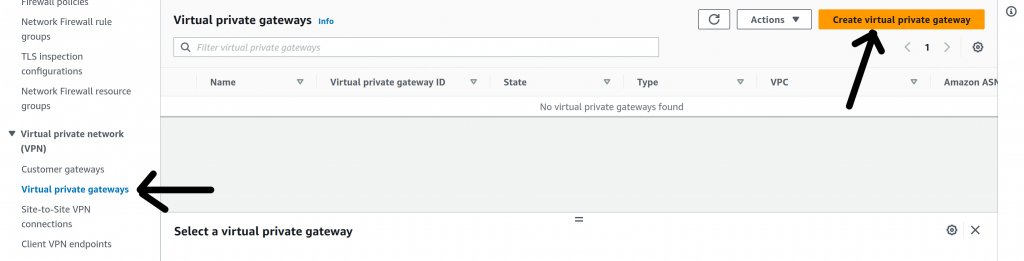
Choose a name and click Create virtual private gateway

Attach the private gateway to the VPC
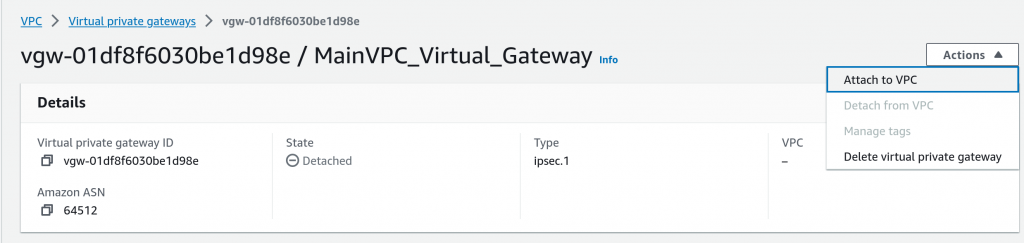
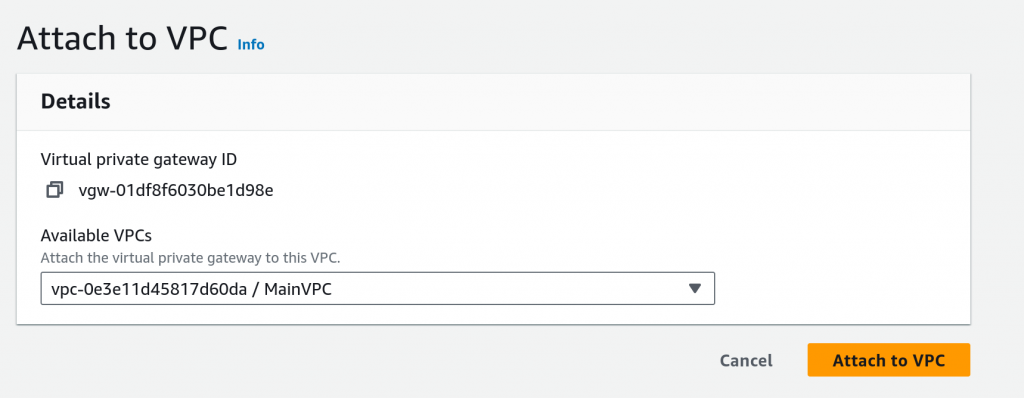
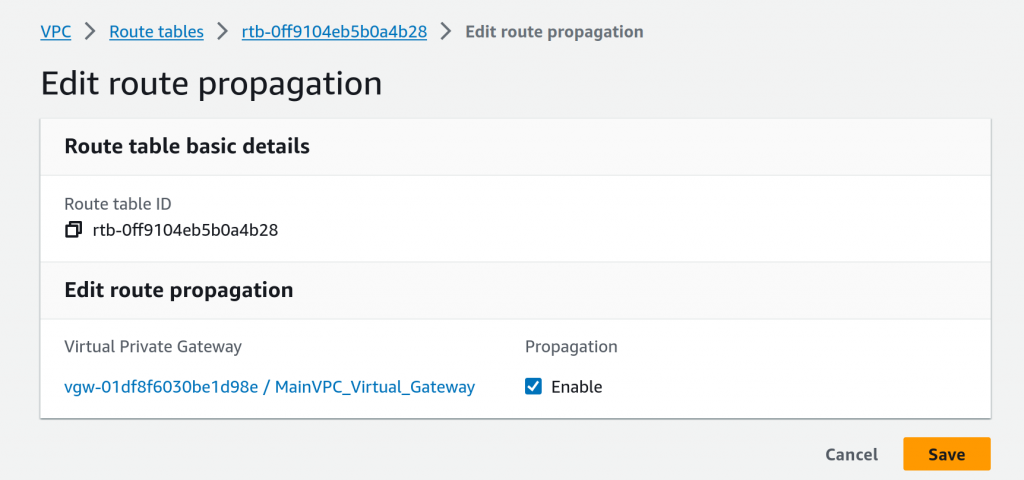
In order to route the traffic from the virtual private gateway to the private subnet, we should use Route propagation.
Click on VPC -> Route Tables -> your private route table -> route propagation -> your virtual gateway
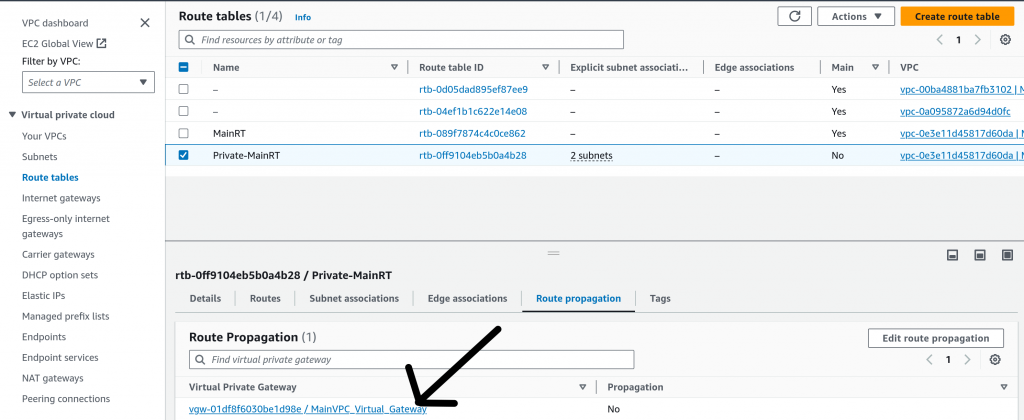
Tick enable and save
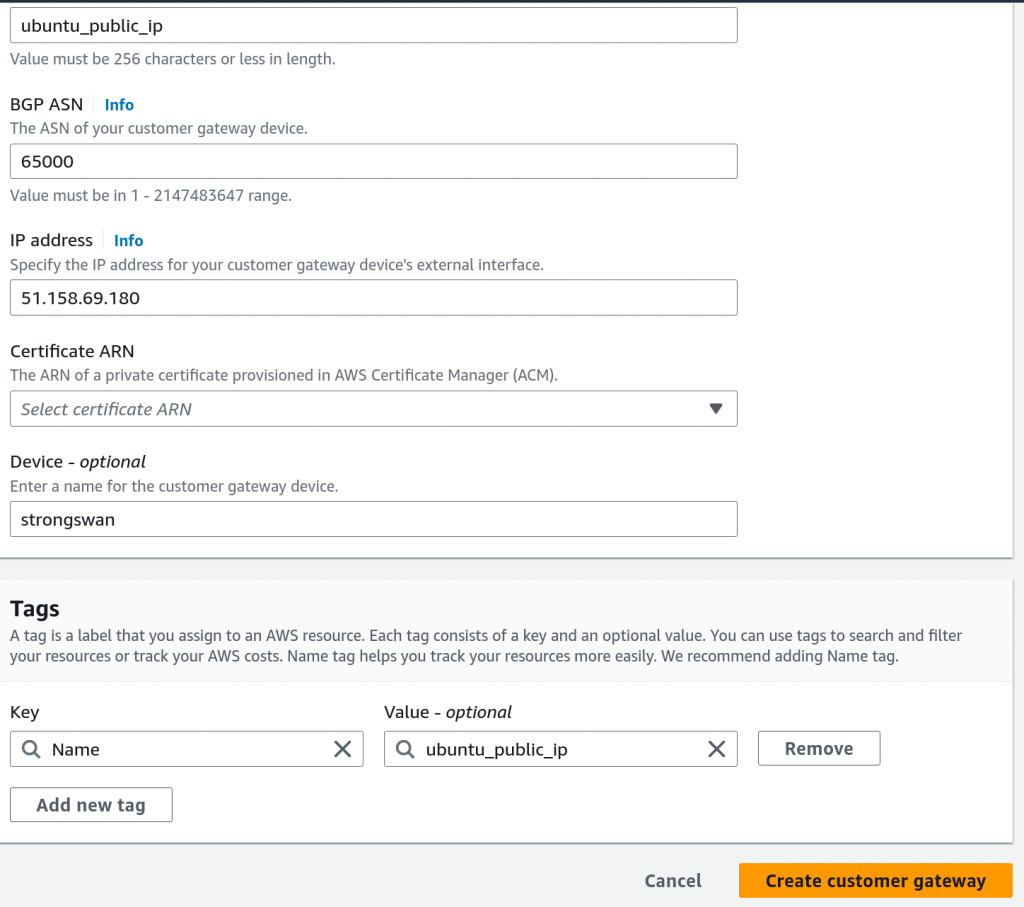
Create customer gateway, click Customer Gateways -> Create customer gateway
It is time to create site-to-site VPN
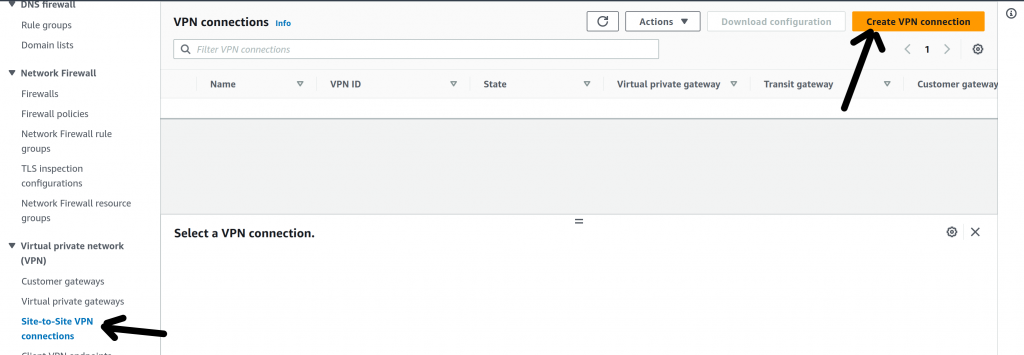
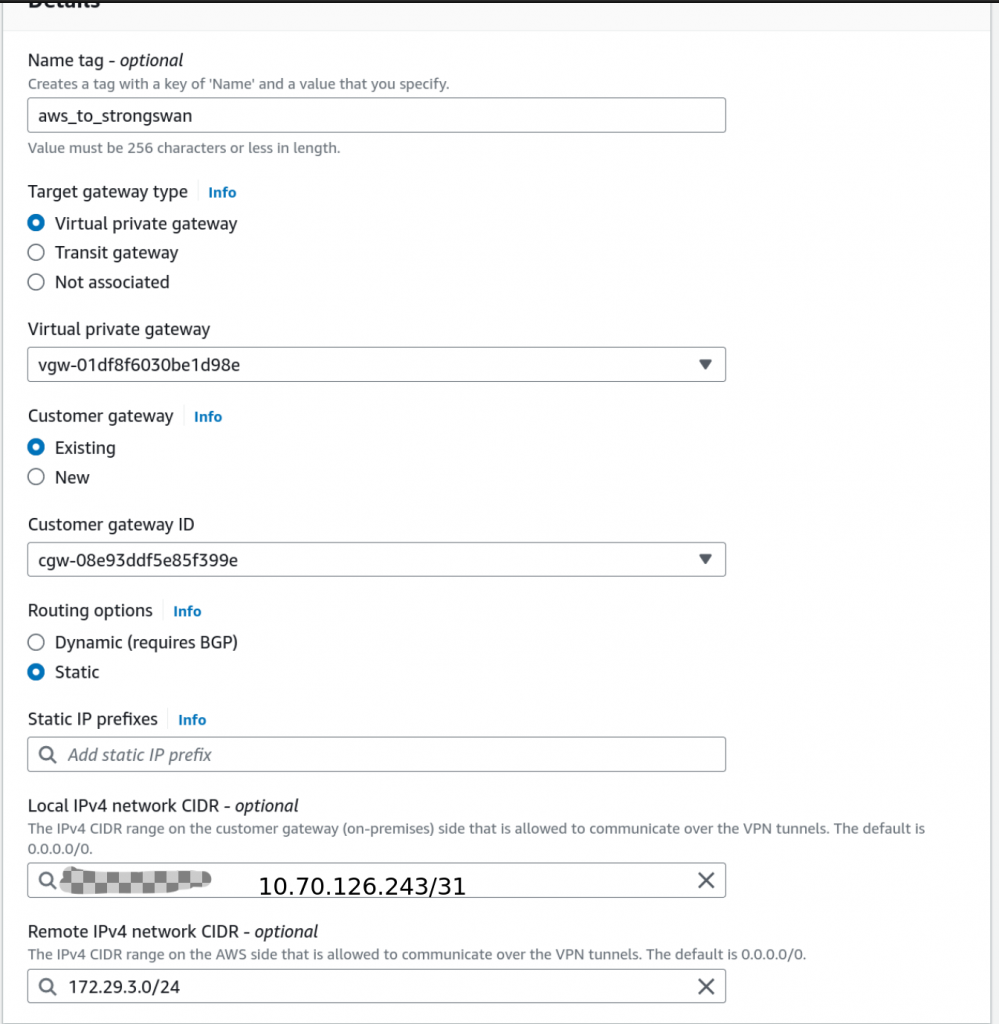
on the same page, choose this options.
Pre-shared key for tunnel is the password (make it strong!)
Phase 1 DH Group Numbers : 24
Phase 1 DH Group Numbers : 24
Phase 1 lifetime (seconds): 28800
Phase 2 lifetime (seconds): 3600
DPD timeout (seconds): 30
Replay window size (packets): 1024
Rekey fuzz (percentage): 100
Rekey margin time (seconds): 270
DPD timeout action: Restart
Startup action : add
And the others like the picture below
For Tunnel 2 choose the same as Tunnel 1

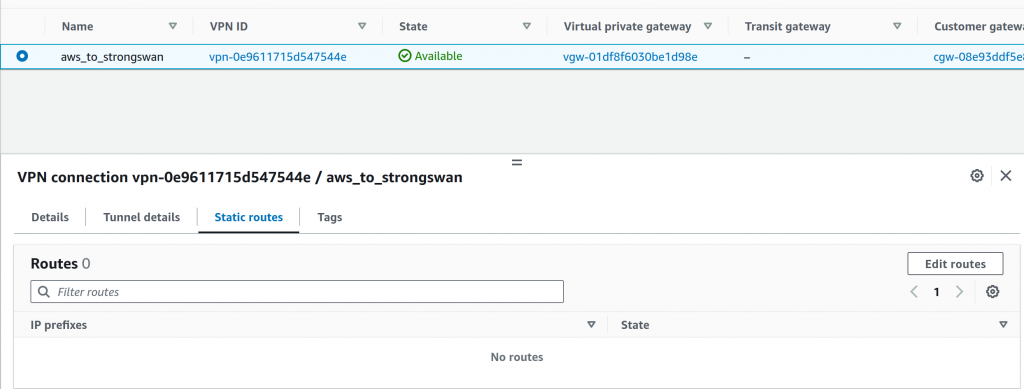
After the VPN is ready, click on static routes -> edit routes
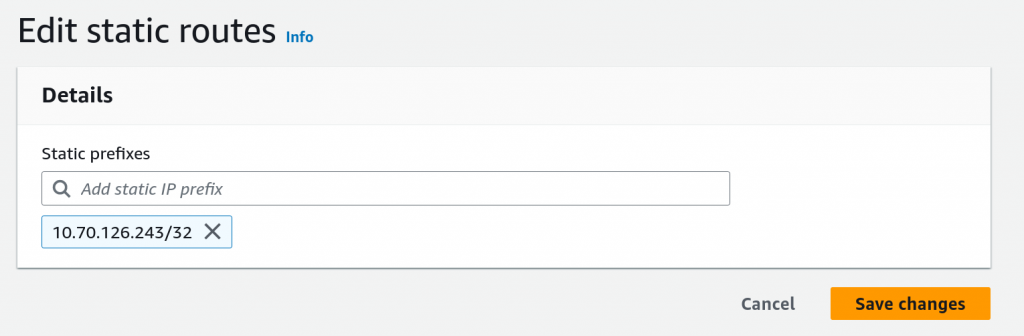
type the ubuntu private subnet or ubuntu private IP
The AWS side is ready, lets start with
Ubuntu Strongswan
Enable Kernel Packet Forwarding
edit /etc/sysctl.conf
Find the following options and uncomment them and set their values to:
net.ipv4.ip_forward = 1
net.ipv4.conf.all.accept_redirects = 0
net.ipv4.conf.all.send_redirects = 0
Save the settings to the kernel
sudo sysctl -pInstall Strongswan
$ sudo apt update
$ sudo apt install strongswan
edit /etc/ipsec.conf as show and replace with your IPs
To understand the lines above, read the documentation
# ipsec.conf - strongSwan IPsec configuration file

# basic configuration
##### Tunel 1
config setup
         strictcrlpolicy=no
         uniqueids = yes
conn ubuntu_to_aws1
       type=tunnel
       auto=route
       keyexchange=ikev2
       leftauth=psk
       authby=secret
       left=10.70.126.243
       leftsubnet=10.70.126.243/31
       leftid=51.158.69.180
       right=34.202.11.224
       rightsubnet=172.29.3.0/24
       rightid=34.202.11.224
       ike=aes256-sha512-modp2048s256
       esp=aes256-sha512-modp2048s256
       rightauth=psk
       keyingtries=%forever
       ikelifetime=28800s
       lifetime=3600s
       dpddelay=30s
       dpdtimeout=120s
       dpdaction=restart

     #Tunnel 2
     conn ubuntu_to_aws2
       type=tunnel
       auto=route
       keyexchange=ikev2
       leftauth=psk
       authby=secret
       left=10.70.126.243
       leftsubnet=10.70.126.243/31
       leftid=51.158.69.180
       right=34.202.210.66
       rightsubnet=172.29.3.0/24
       rightid=34.202.210.66
       ike=aes256-sha512-modp2048s256
       esp=aes256-sha512-modp2048s256
       rightauth=psk
       keyingtries=%forever
       ikelifetime=28800s
       lifetime=3600s
       dpddelay=30s
       dpdtimeout=120s
       dpdaction=restart
edit /etc/ipsec.secrets with your IPs and password
# This file holds shared secrets or RSA private keys for authentication.

# RSA private key for this host, authenticating it to any other host
# which knows the public part.
10.70.126.243 34.202.11.224 : PSK "SuperStrongPassKey9"

10.70.126.243 34.202.210.66 : PSK "SuperStrongPassKey9"
Reload the configuration and restart the service with
sudo ipsec reload
sudo ipsec restart
Start the tunnel with
sudo ipsec up ubuntu_to_aws1
sudo ipsec up ubuntu_to_aws2
If everything is ok, you should see something like this

I started an ec2 linux machine in the private subnet to test the tunnel connection and it works!!!

If it do not works check your firewall or NAT settings. Look at strongswan logs in /var/logs/syslog
You can enable AWS site-to-site logs and check the in cloudwatch too.
